SQLite Browser for Mac
Open any SQLite file. Understand it instantly.
Point Rowwright at a .sqlite or .db file — from your app’s container, a mobile backup or a side project — and browse, query and edit it with the same tools you use for your server databases.
Everything you need for SQLite
Open or create
Choose an existing database file or create a new one from the connection dialog.
Edit with confidence
Pending changes are reviewed before they’re written, in one transaction.
See the schema
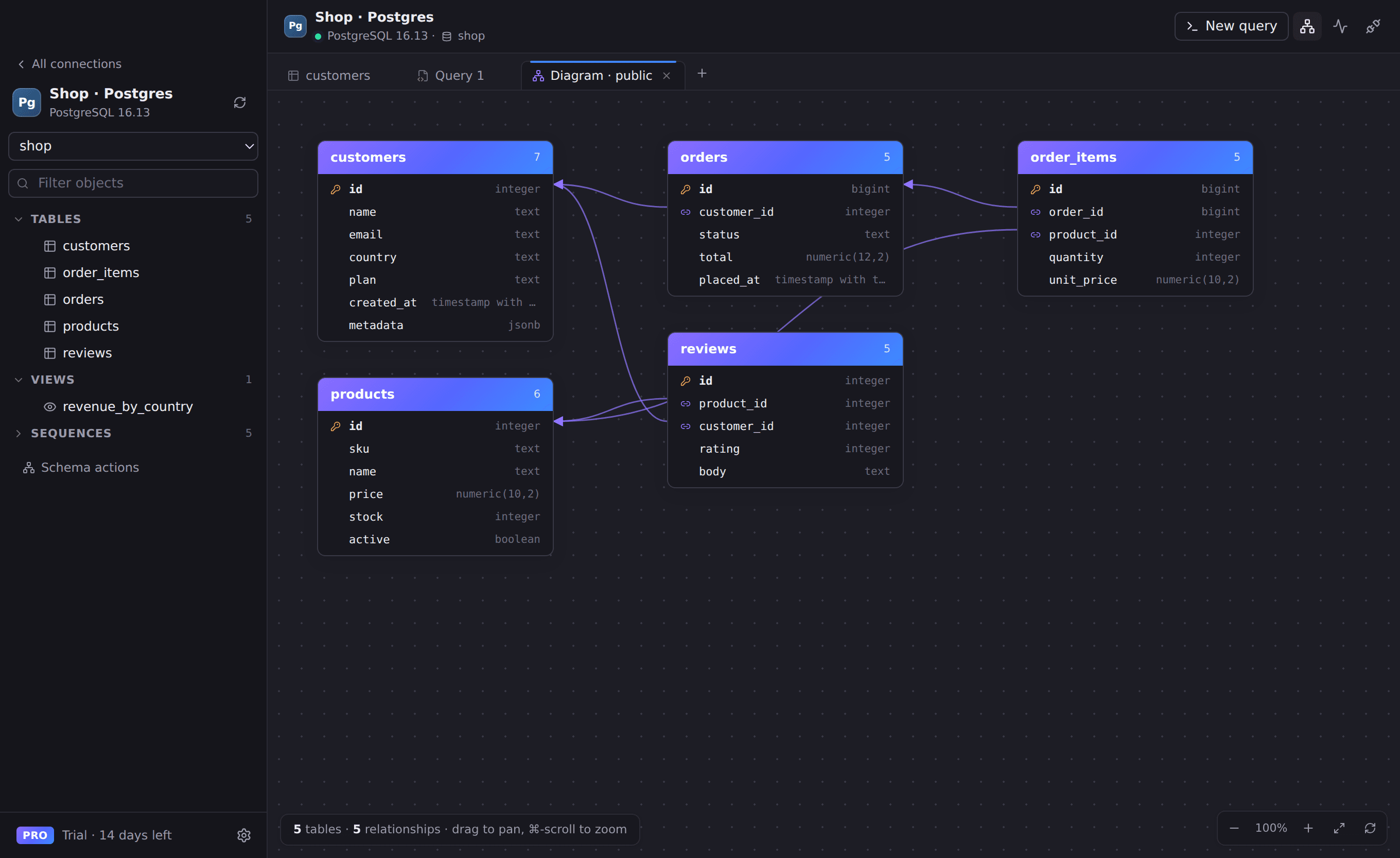
Tables, views and triggers with their original CREATE statements and foreign keys.
Read-only mode
Open a database read-only to explore without any risk of changing it.
Works with
- Any SQLite 3 database file
- .sqlite, .sqlite3, .db and .db3 files
- Core Data and app container databases
Connect in seconds
- 1. Open Rowwright and click New connection.
- 2. Choose your database file, for example:
~/Library/Application Support/MyApp/data.sqlite3. Press Save & Connect. Passwords are stored in your macOS Keychain.
SQLite questions
- Can Rowwright create a new SQLite database?
- Yes. In New connection choose SQLite, click New… and pick where to save the file.
- Is the SQLite support free?
- Yes. Every database engine, including SQLite, is available on the Free plan.